Studio Core
Header, timeline, automation, takes, resampling, session, mixer, export.
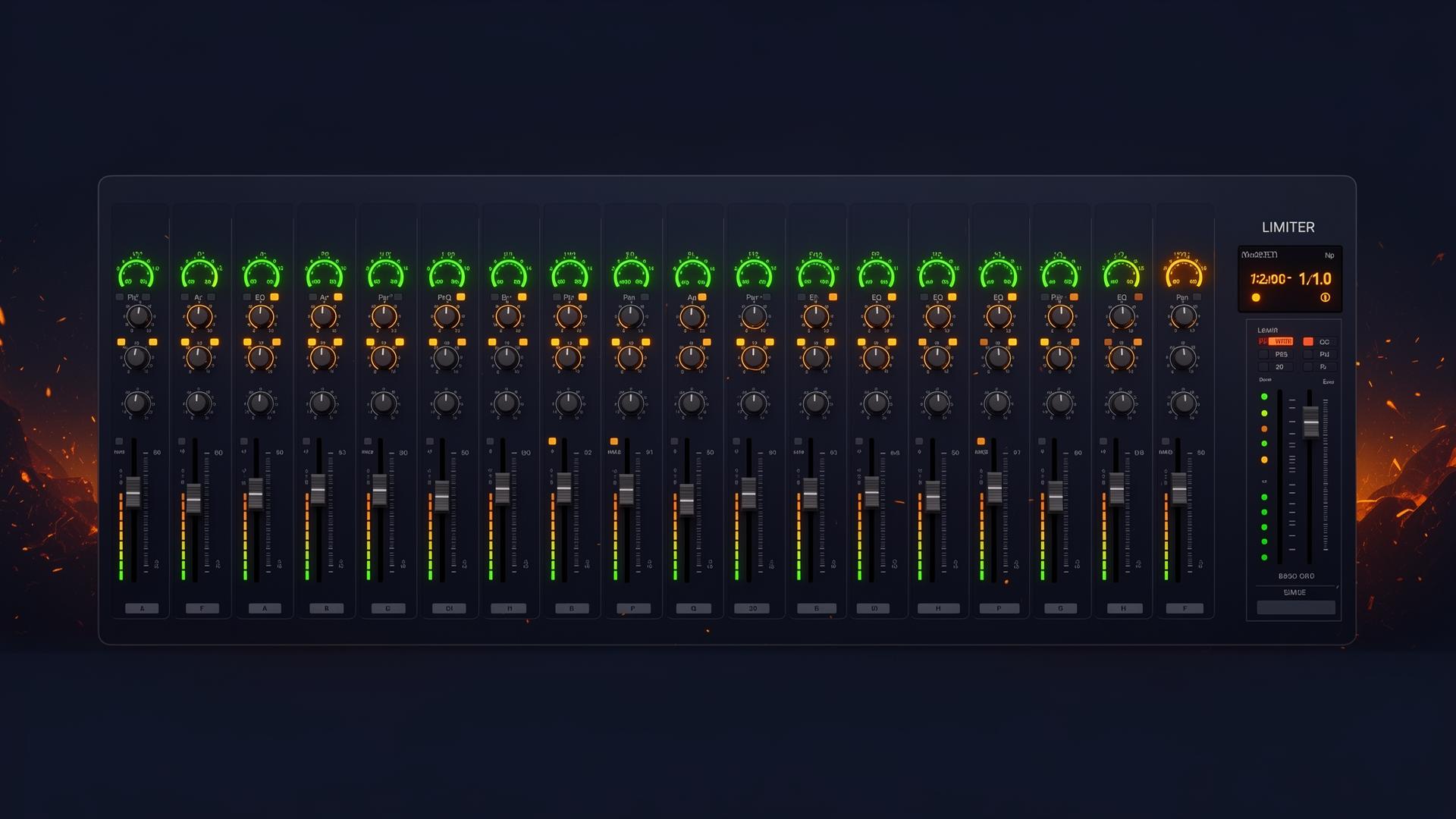
The Studio is where everything happens — transport, timeline, session clip launcher, mixer, automation, takes, resampling and exports. Four primary views, switchable with 1 2 3 4.
Transport
The transport bar lives at the top of the studio. Play/stop, record, BPM, time signature, metronome, loop, count-in, and the time display all live here.
| Play / Stop | Space |
| Record arm | R |
| Metronome | M |
| Loop region | L |
| Jump to start | Home |
| Jump to end | End |
| Solo selected track | S |
| Show shortcut sheet | ? |
BPM & time signature
Click the BPM number to type a value, or drag vertically to scrub. Time signature is a dropdown — 4/4 by default, with 3/4, 6/8, 7/8, 5/4 ready to go. Tempo automation lives in the master automation lane (see Timeline).
Count-in & loop
Count-in (1, 2, or 4 bars) primes the metronome before record arms. Loop drags two handles on the timeline ruler to set the loop region — toggle with L.
Timeline arrangement
The Timeline view is your linear arrangement: tracks stacked vertically, time running left-to-right. Drag the playhead in the ruler to scrub. Drag clips to move, hold the edge to trim, double-click to open the clip editor.
Clip operations
| Cut clip | ⌘/Ctrl + X |
| Copy clip | ⌘/Ctrl + C |
| Paste clip | ⌘/Ctrl + V |
| Duplicate clip | ⌘/Ctrl + D |
| Delete clip | Delete |
| Undo / Redo | ⌘/Ctrl + Z / ⇧Z |
Slicing & warping
Right-click an audio clip → Slice at markers to split on transients, or hover the clip and drag the scissor handle for a manual cut. Warp uses the project BPM as the target; toggle Warp in the clip inspector to lock the clip to the grid as you change tempo.
Automation lanes
Click the triangle on a track header to expose its automation lane. Pick a parameter (volume, pan, send, any plugin knob), then click on the lane to add breakpoints. HoldAlt while dragging for fine control.
Session clip launcher
Session view (press 2) is the non-linear jam grid. Each track has a column of clip slots; trigger them in any order. Horizontal rows are scenes — fire a scene and every slot in that row launches together.
Each clip has a follow action — what happens when it ends. Pick none, same, next, previous, or random. Build entire arrangements that loop and morph without ever touching the timeline.
Mixer
The mixer (press 3) is a classic vertical channel strip per track: gain, pan, sends, insert slots, fader, meter. Sends are pre-fader by default; click the small post badge to flip.
Buses & routing
Create a bus from the + Bus button at the right end of the mixer. Route any track to it via the bottom-of-strip output dropdown. Common pattern: a Drums bus, a FX bus with reverb, a Master bus with mastering chain.
Master chain
- Mastering EQ — linear-phase, 8-band, with M/S mode.
- Multiband Compressor — 4 bands, crossover-aware.
- Mid/Side Processor — width, mono-below frequency, stereo enhance.
- Limiter — true-peak with lookahead, ceiling presets for streaming.
The header, left to right
The studio header is split into hardware style modules so you always know where to look:
- Tempo: Tap, BPM, time signature and the metronome bell.
- Transport: back to start, the round Play button, Stop, Record (with its mode menu) and the bar counter.
- Helpers: Loop, Punch and Count in (click CI to cycle 0 to 4 bars).
- Project: the project name, settings and collaborators' avatars.
- MIDI and system: the onscreen piano, MIDI status, live note activity, mapping sets and CPU.
- Master: master volume, the meter and audio settings.
- Export and the ⋮ Options menu: undo and redo, save, collaborators, open on phone, beginner tips, theme and keyboard shortcuts.
Locators, loop brace and time signatures
Right click the ruler to drop a locator (a named marker such as "Drop" or "Break"). Click a locator to jump the playhead there. Drag the loop handles on the ruler to set the loop brace, and toggle it with L. Tempo and time signature can change mid song through scene settings, so a breakdown in 3/4 or a tempo lift into the drop just works.
Automation
Press Automation in the arrangement toolbar to show lanes under each track. Click to add breakpoints, drag to shape the curve, and double click a point to delete it. Volume and pan are ready on every track, and devices expose their knobs as automation targets. Scenes can also carry their own tempo and time signature.
Recording MIDI
Plug in any class compliant MIDI keyboard or pad controller. The MIDI chip in the header lights up with each note you play. Arm a track with R, press Record, and your notes become a clip. Turn on quantize on record to snap them to the grid as you play. No keyboard? Open the onscreen piano from the header and play with your computer keys.
Takes and comping
Every pass you record over the same region is kept as a take. Open Takes in the toolbar to see them stacked under the track, then click the best parts of each take to comp a single perfect performance. Use Punch to record only between the punch in and punch out points, so the rest of the part stays untouched.
Resampling and bounce in place
Turning a synth part into audio is the heart of bass music sound design. Three ways to do it:
- Resample master: choose it from the Record button's menu, press Record, and everything you hear is captured to a new sample.
- Bounce to new audio track: right click a track header. The track plays on its own (with all its effects) and the result lands on a new audio track under it, at the same bar.
- Freeze and flatten: the same bounce, then the original track is muted so only the audio plays.
Bounces play in real time and are saved to your library, so you can reverse, pitch, chop them in the Sample Editor, or drop them onto Sampler pads.
Scenes, groups and routing
In Session view, launch a whole row of clips with the scene button on the right. Scenes can change tempo and time signature when they launch. Right click a track to group it into a group track and fold the group to save space. The mixer gives each track an output (master or a bus), sends to return buses, and a crossfader assignment for A/B blends when you perform.
Dark and light themes
Dark is the default. Switch to Light from ⋮ Options → Theme in the studio, the Light mode button on the dashboard, or the moon and sun button in Forge Pocket. Your choice is saved to your account.
Recording & exporting
Hit R on a track to arm it for input. For sequenced material, recording is the act of bouncing a session clip or a timeline region down to audio.
Offline render
File → Export opens the render dialog. Choose format (MP3 on Free, MP3 + WAV on Pro/Studio), bit depth, sample rate, and a loop region. The render runs offline (faster than realtime, no audio dropouts) and downloads when done.
Stems
On Pro/Studio, tick Export stems to get one file per track (or per bus). Useful for mastering hand-offs and remix packs.
Undo, redo, history
Every action — moving a clip, tweaking a knob, deleting a track — goes through the history stack. ⌘/Ctrl+Z undoes,⌘/Ctrl+⇧Z (or Y) redoes. A toast tells you exactly what was undone so you don't lose your place.
The history is per-session — closing the tab clears the undo stack but your project state stays saved.